Genova
Country, Region & City
Creating and Managing Menu Items: A Step-by-Step Guide
This guide provides a comprehensive walkthrough of the process for creating and managing Countries Regions and Cities within the system. Each step includes a screenshot to aid in navigation and understanding. Follow these instructions carefully to ensure accurate completion of each task.
Start url: http://localhost/vanguard-genova/cia/admin
Tab Name: List Menu Items - GENOVA INSURANCE
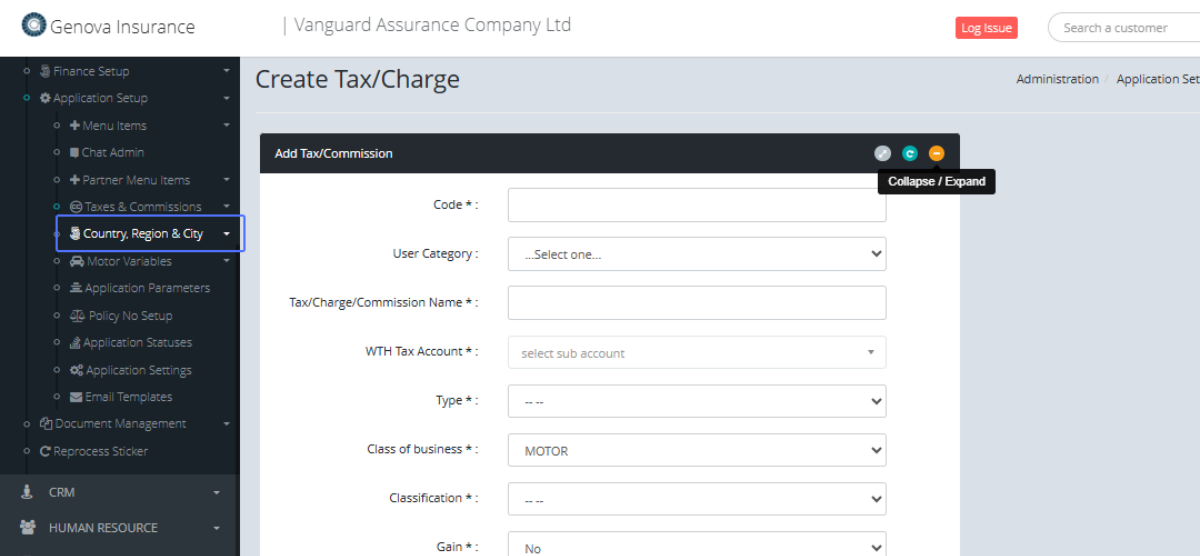
Click on the link "Country, Region & City"
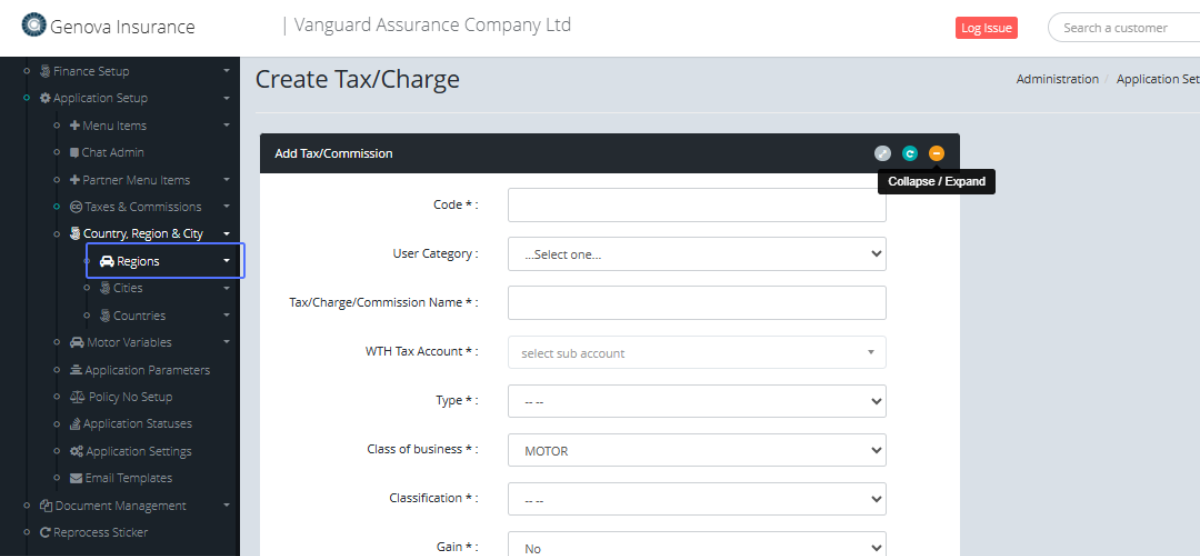
Click on the Tab "Regions" to manage Regions
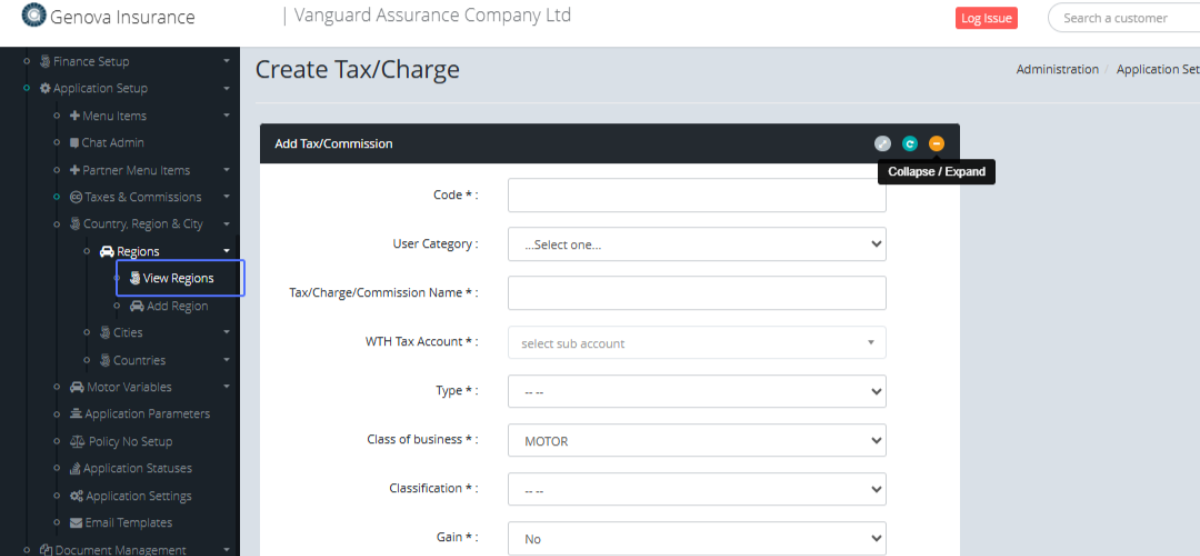
Click on the link "View Regions" link to view the regions within the system.
Tab Name: Regions - GENOVA INSURANCE
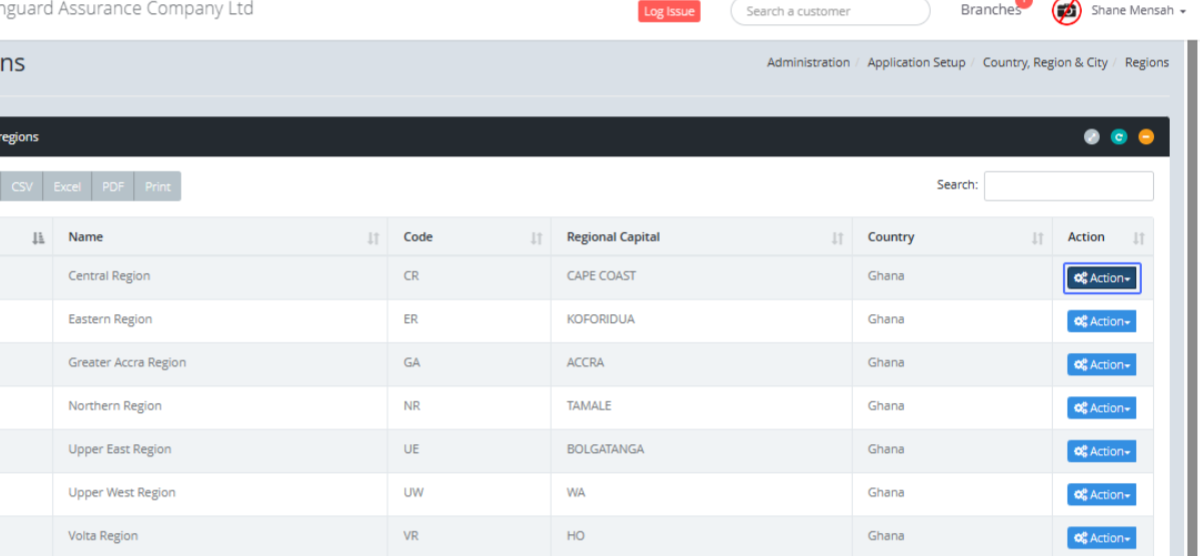
Click on the "Action" button to see the available actions that can be made to the Region
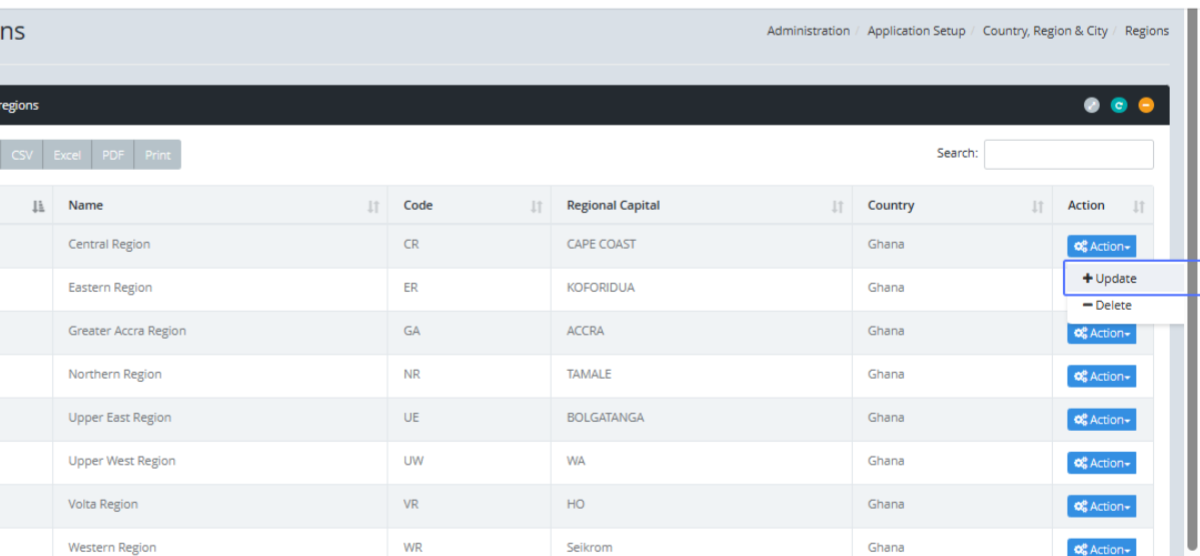
Click on the link "Update" field to Update the existing Region
Tab Name: Add Region - GENOVA INSURANCE
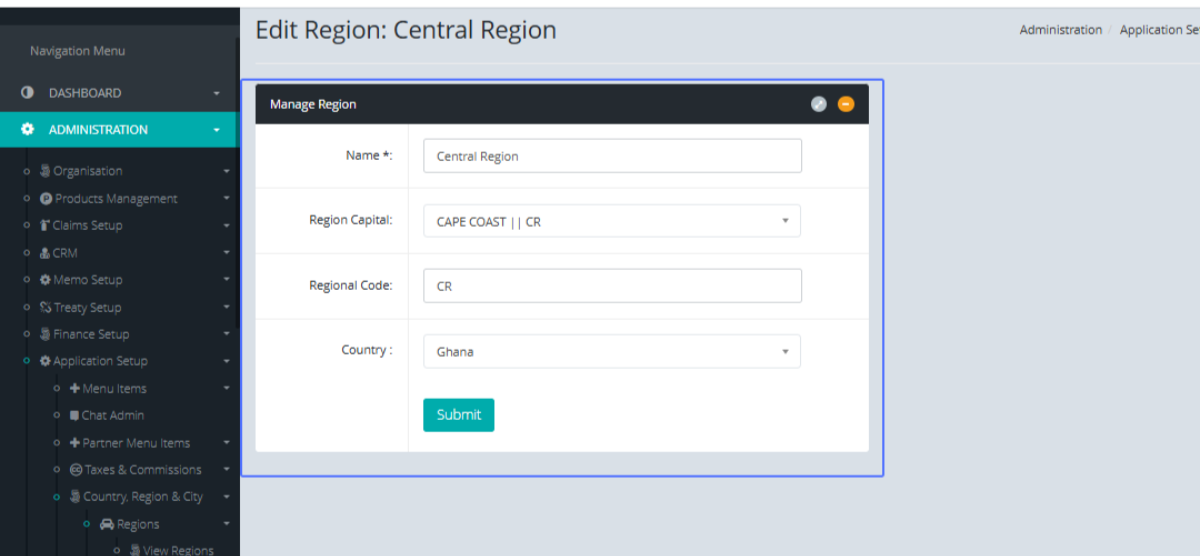
You will be navigated to the Edit region Form to make the changes.
Click on the link "Add Region" to add a new Region.
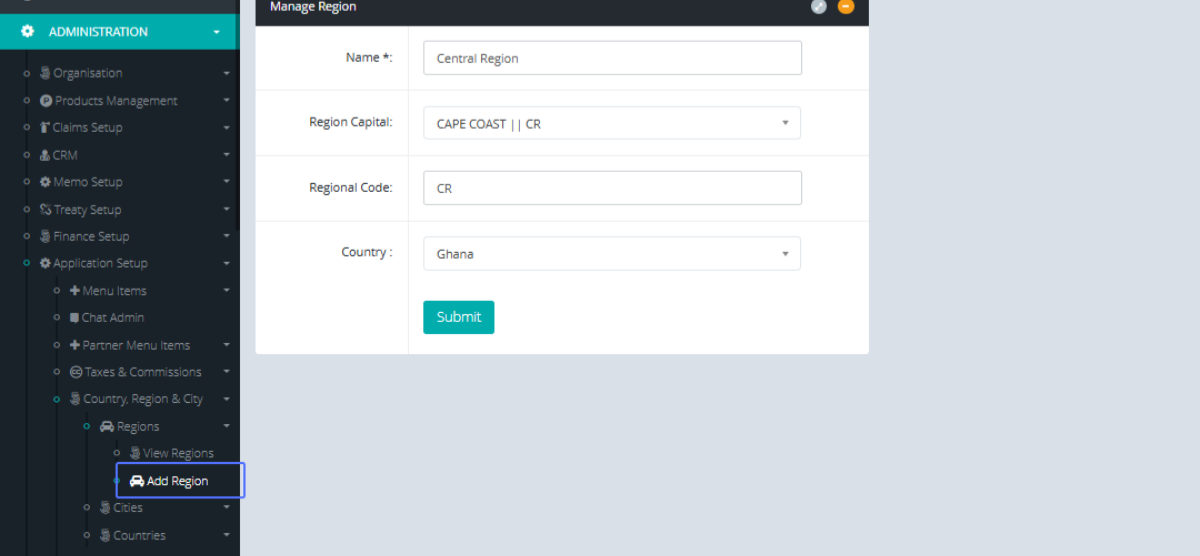
Enter the Name within the input field.
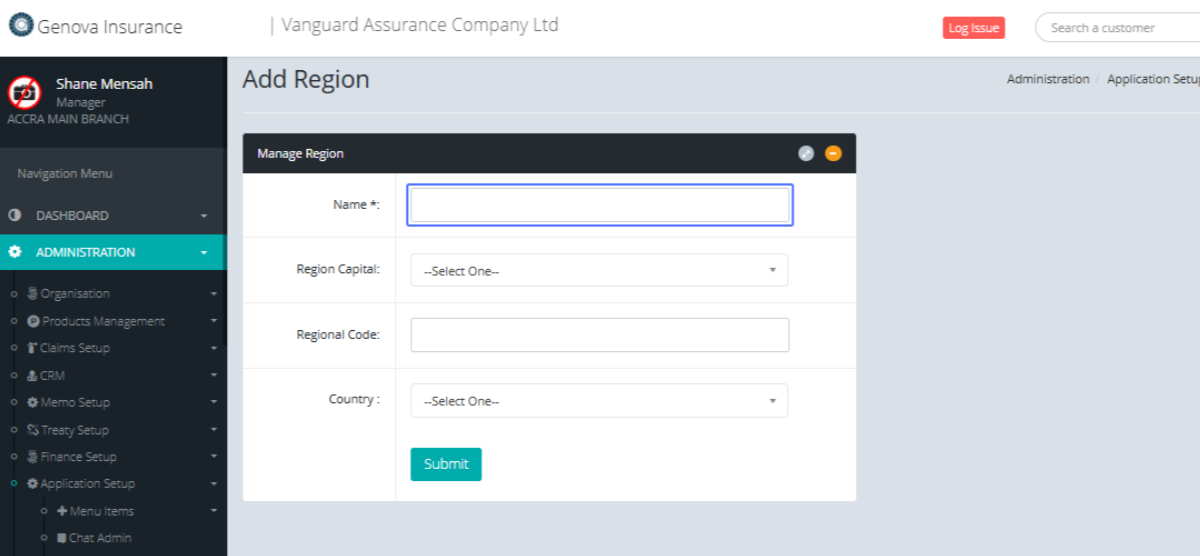
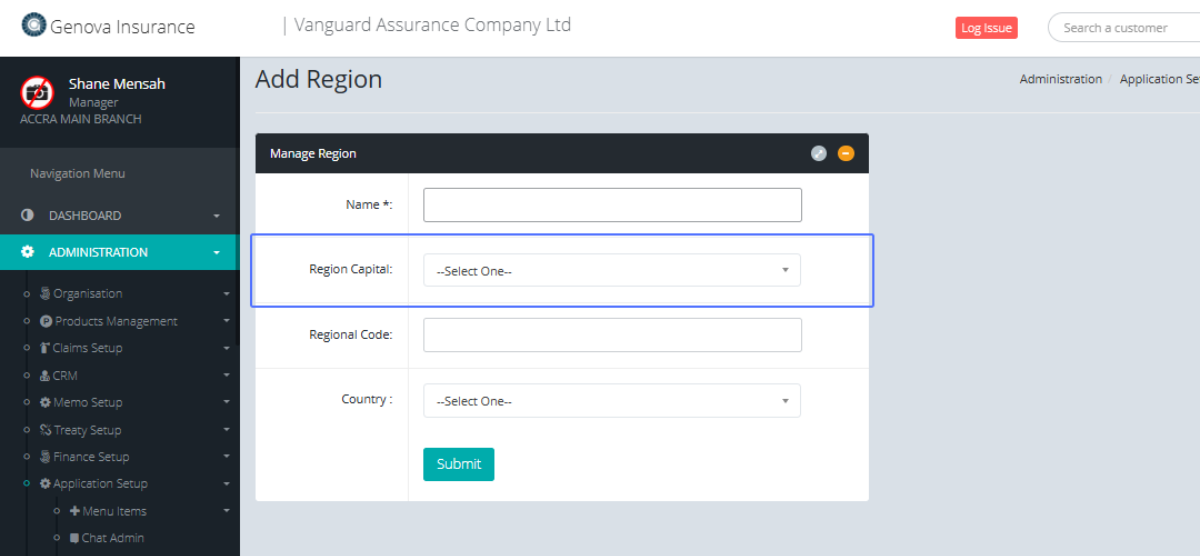
Click on Region Capital from the available dropdown.
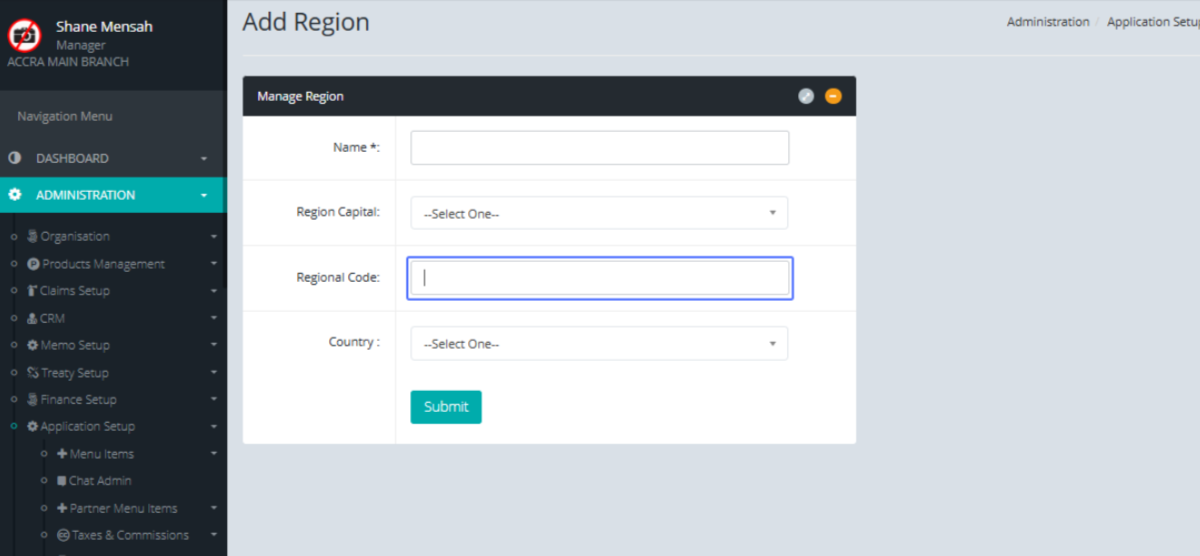
Enter the Regional Code within the input field
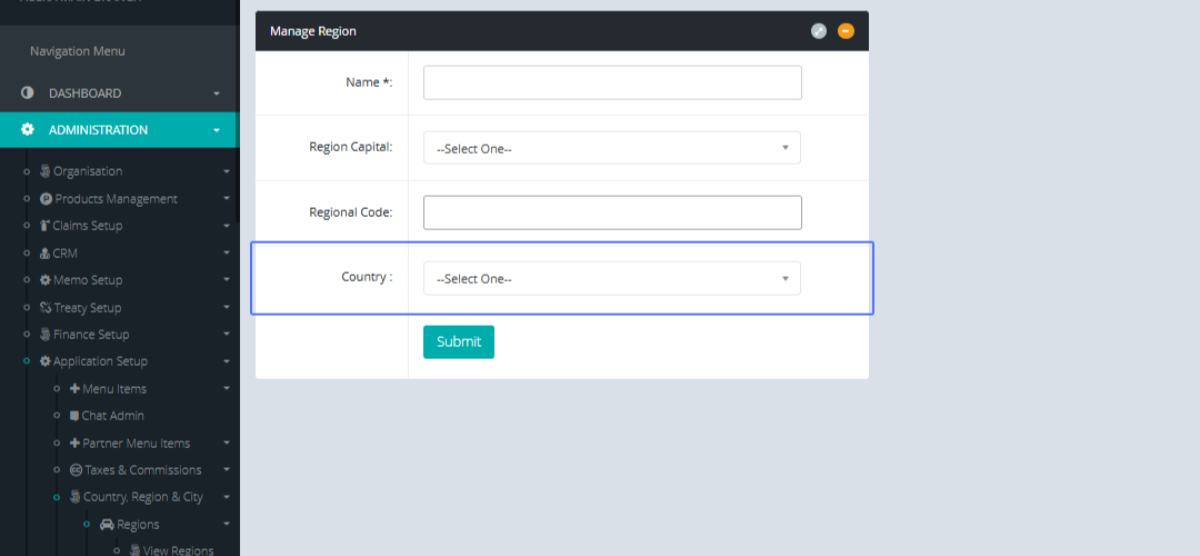
Select the country from the dropdown
Click on the "Submit" button to save the new region.
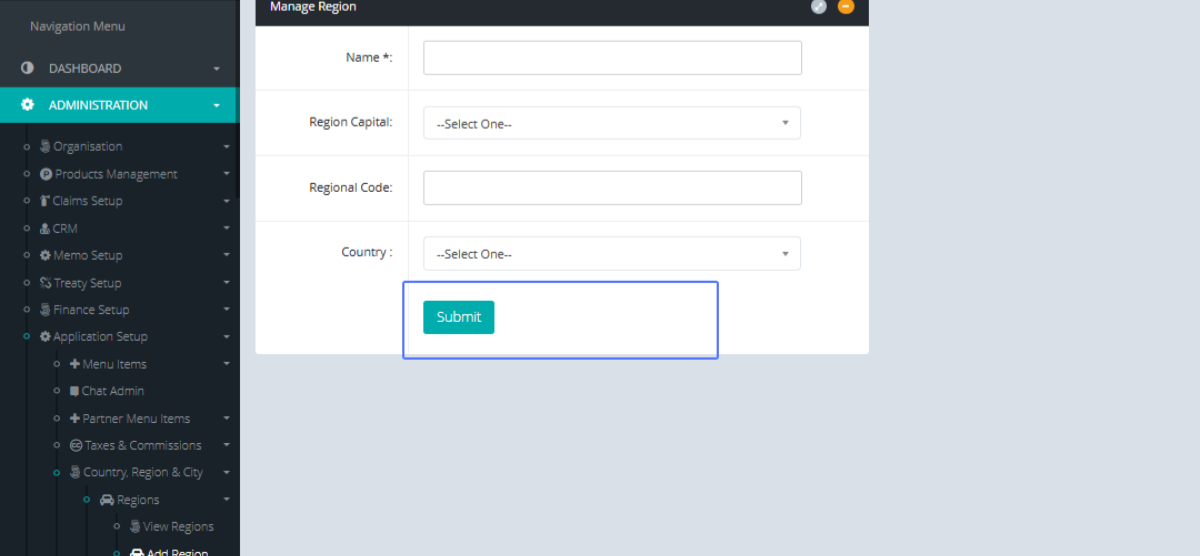
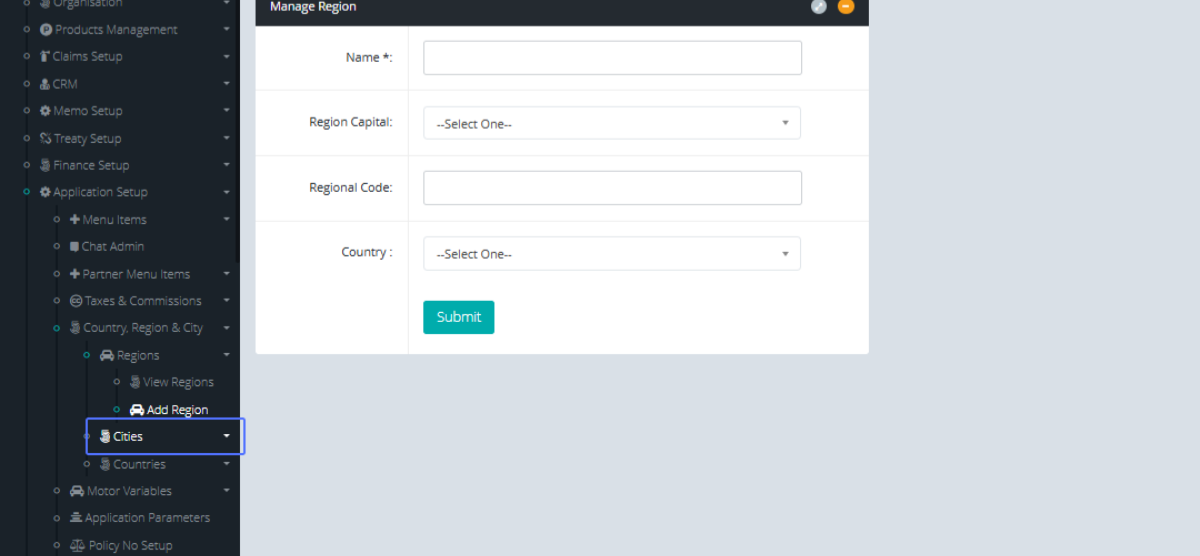
Click on the link "Cities" to view the Cities within the system.
Click on the link "View Cities" to be able to access the cities list.
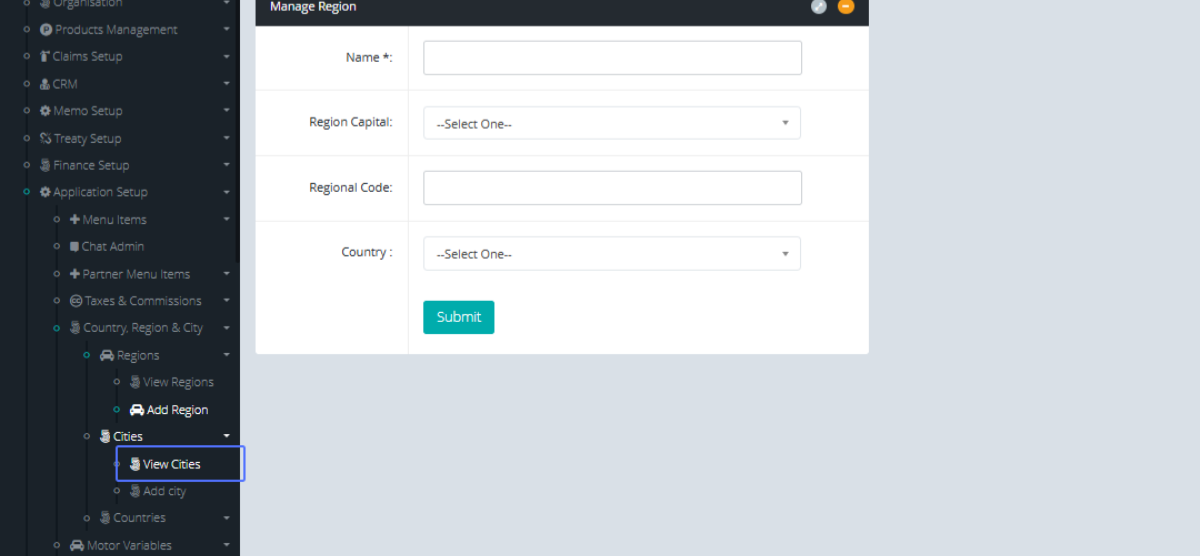
Tab Name: Cities - GENOVA INSURANCE
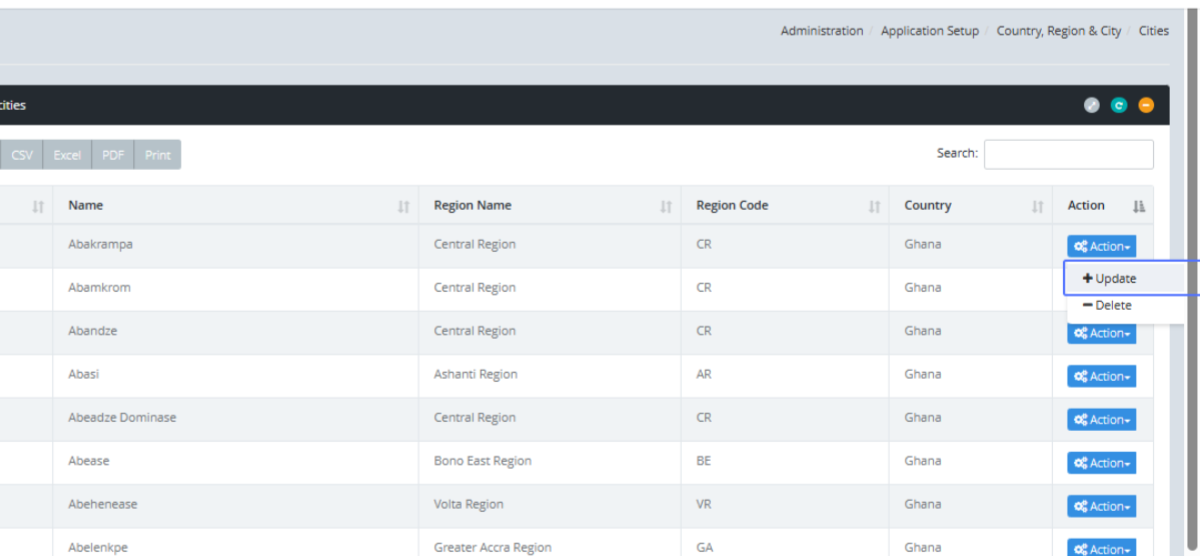
On the City List, Click on the "Action" dropdown to view the available actions for the list item
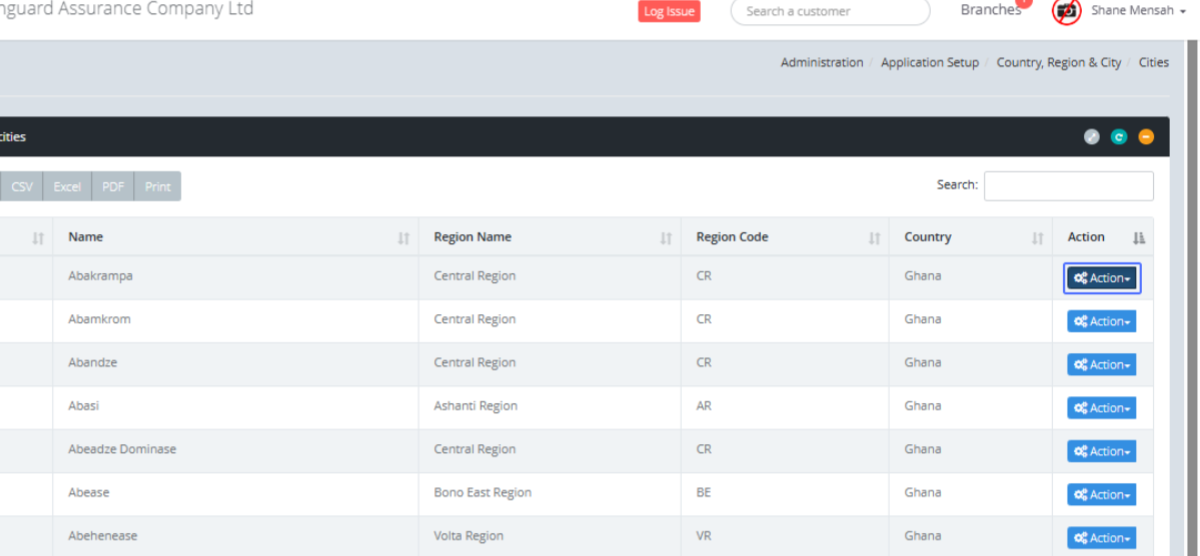
Click on the link "Update" to update the current City Item.
Tab Name: Add city - GENOVA INSURANCE
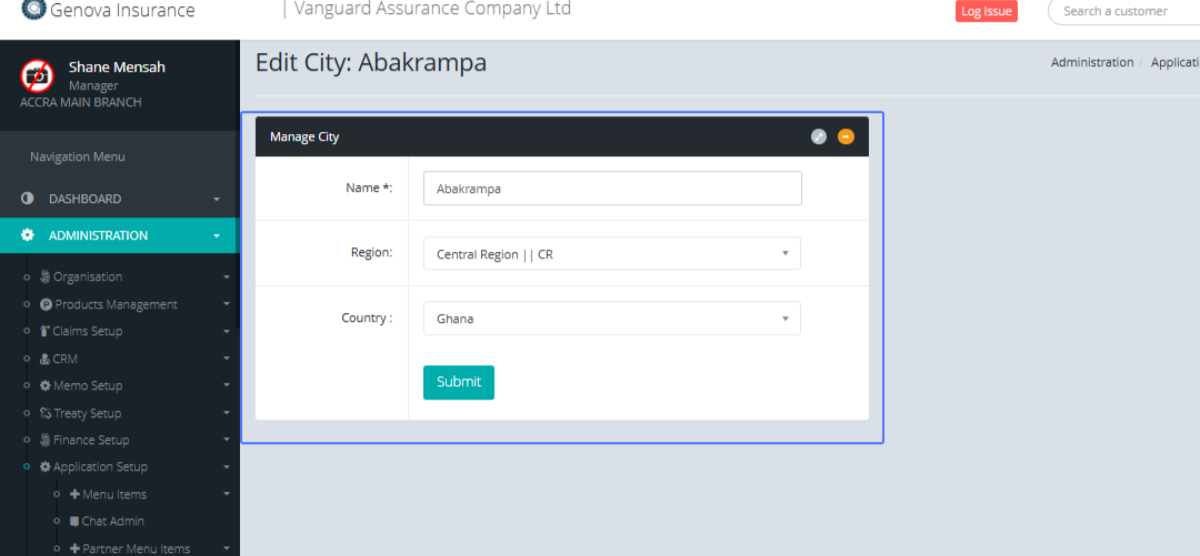
You will be sent to the Manage City page, which shows the form for the particular existing City.
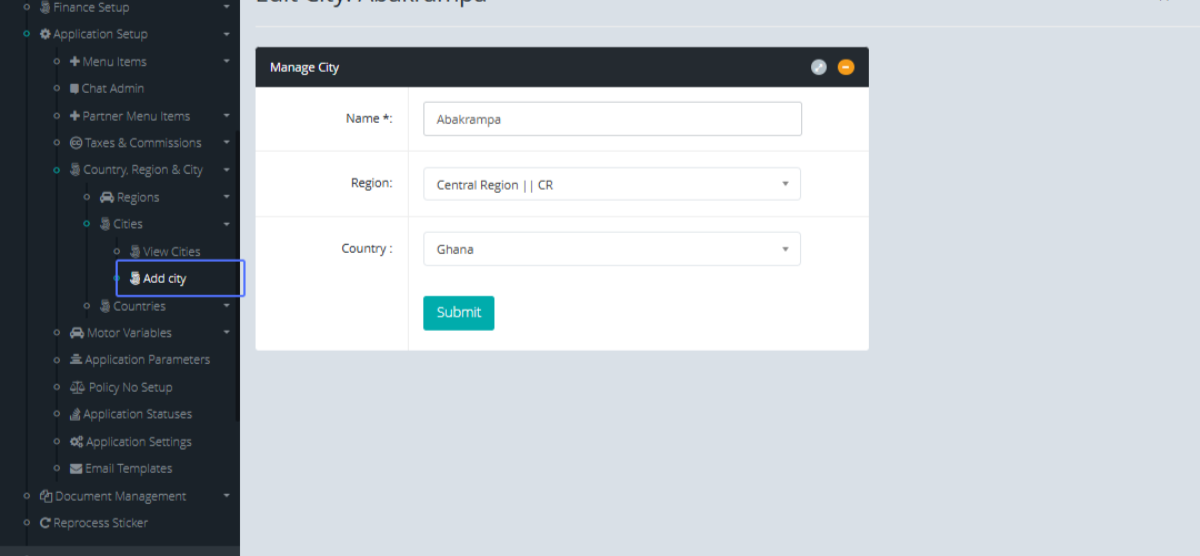
Click on the link "Add city" button to be navigated to the form to add a City.
Add the City name into the field that has been provided.
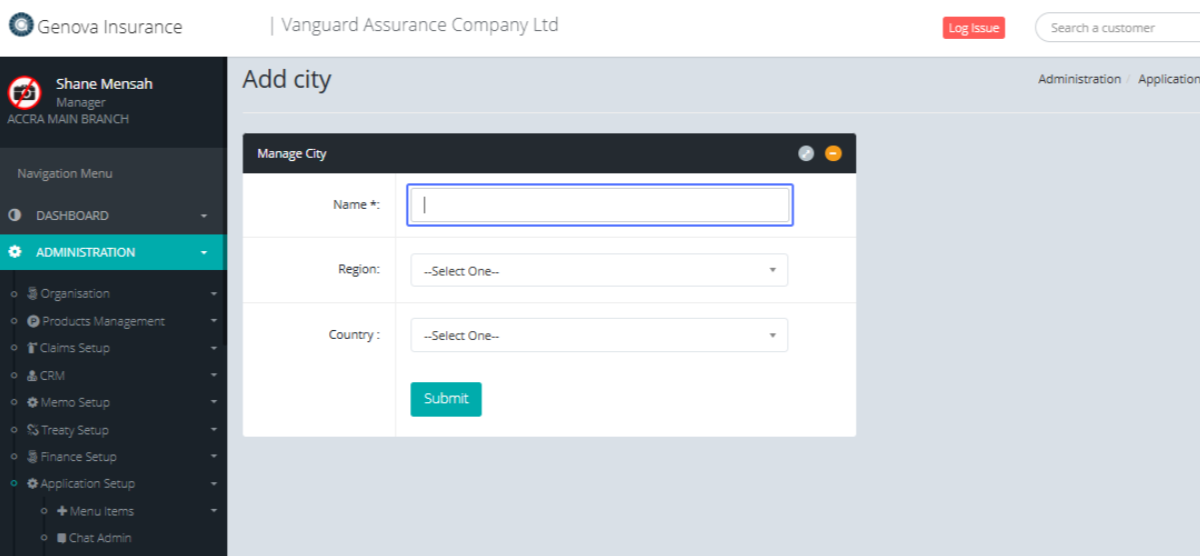
Select the Region from the provided dropdown.
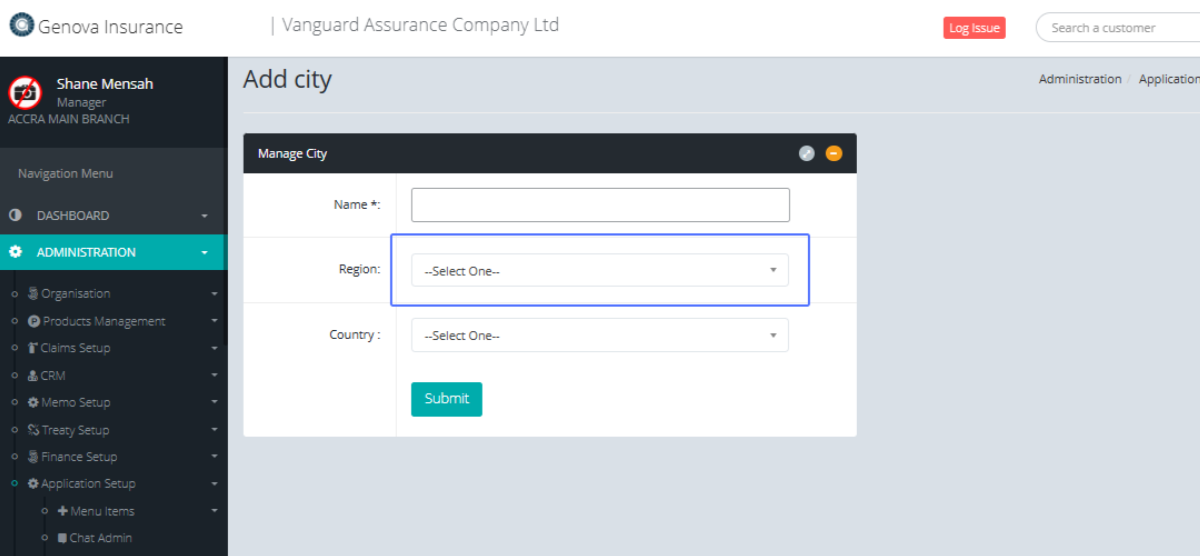
Select the Country from the provided dropdown.
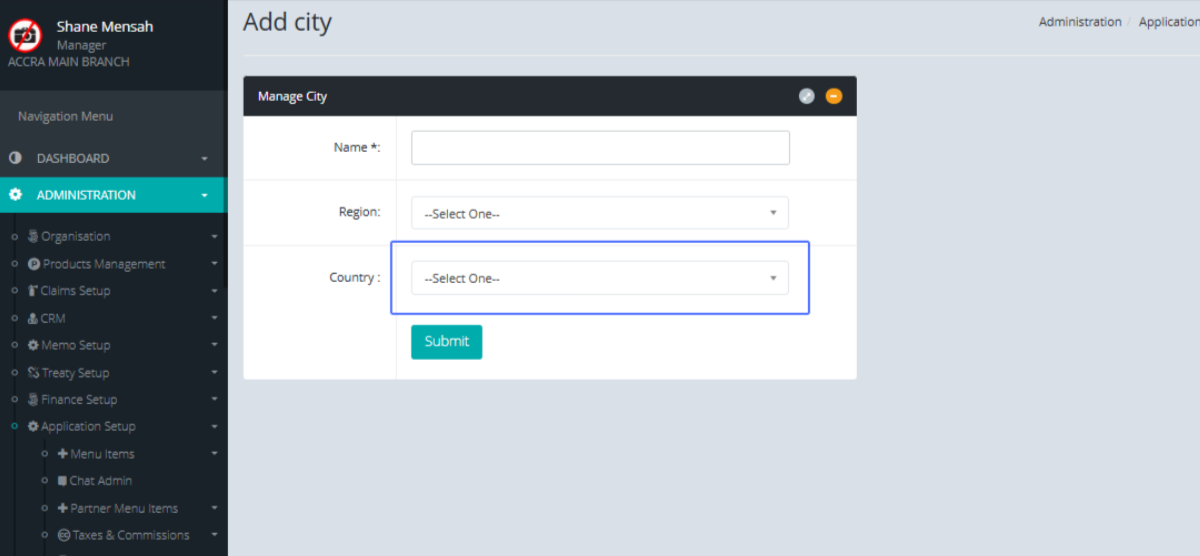
Click on the "Submit" button to save the City.
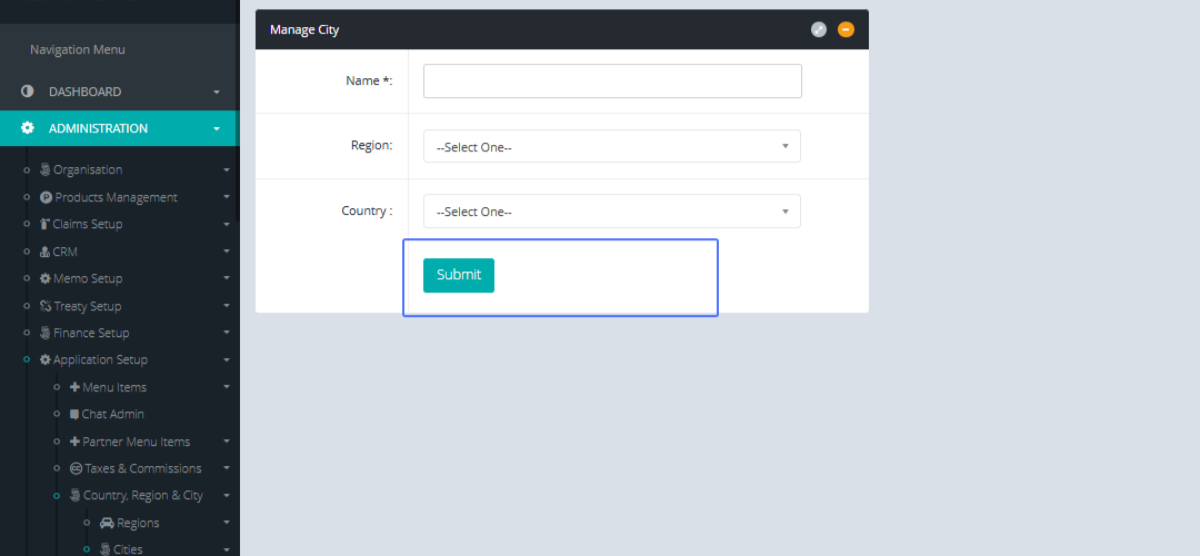
Click on the link "Countries" to manage the countries within the system.
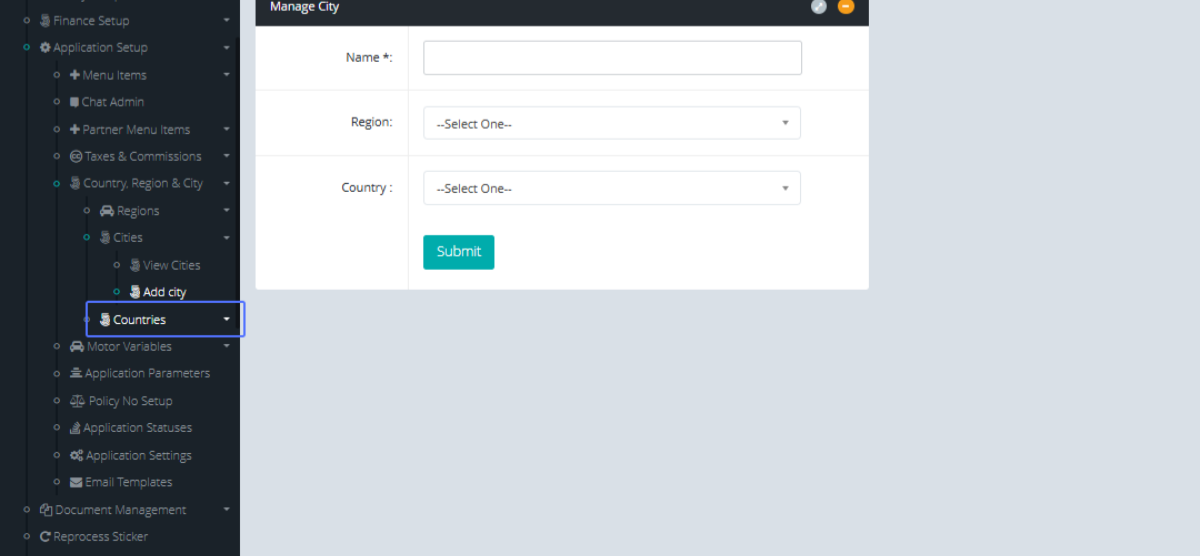
Click on the link "View Countries" to view the country list within the system.
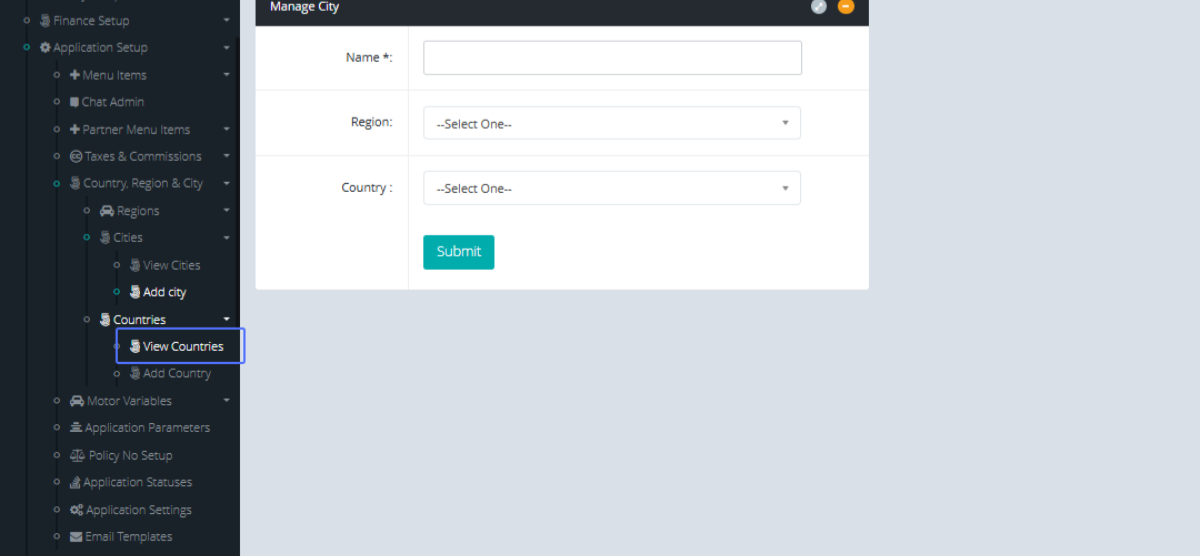
Tab Name: Country, Region & City - GENOVA INSURANCE
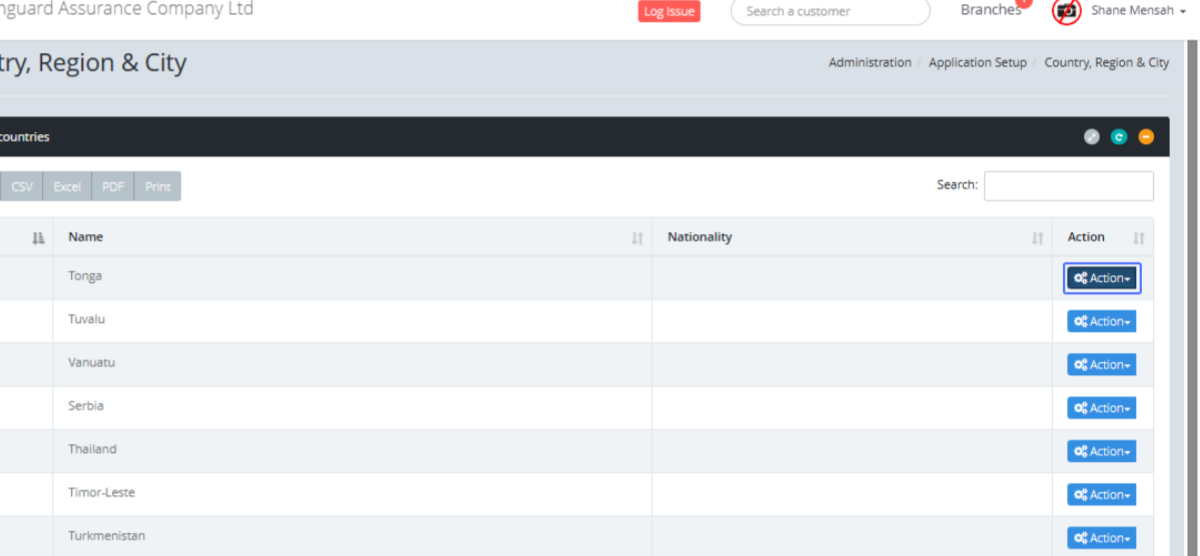
Click on the "Action" button to view the available actions for the selected item.
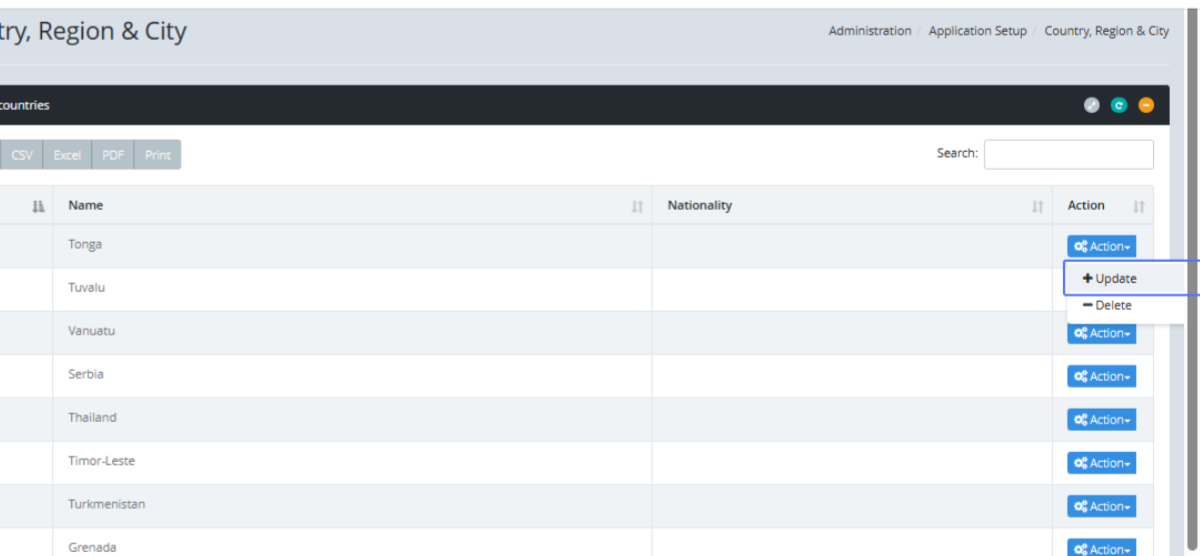
Click on the link "Update" to update the specific list item.
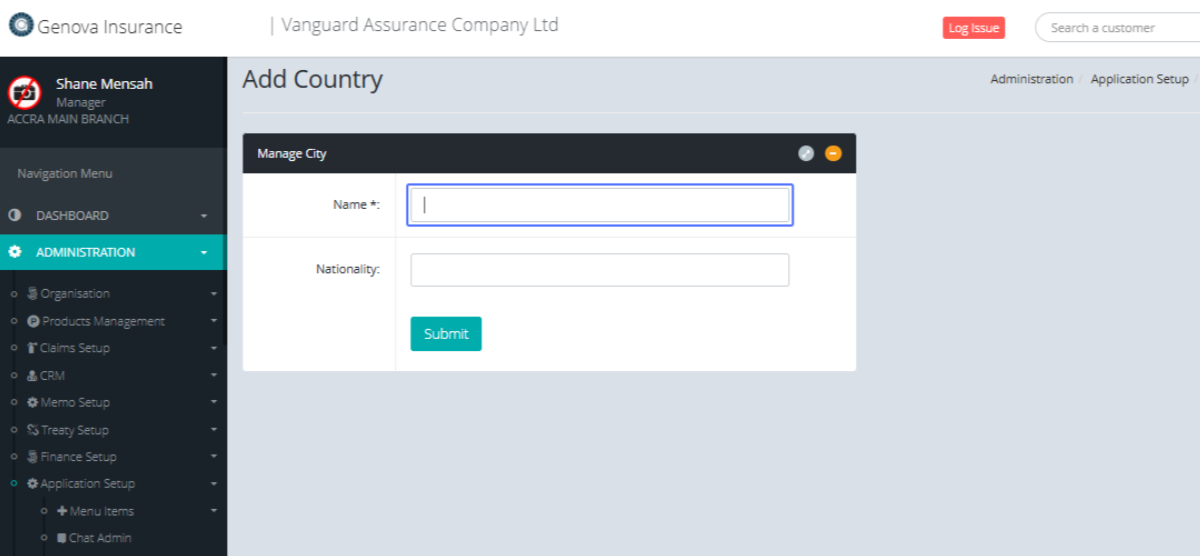
Tab Name: Add Country - GENOVA INSURANCE
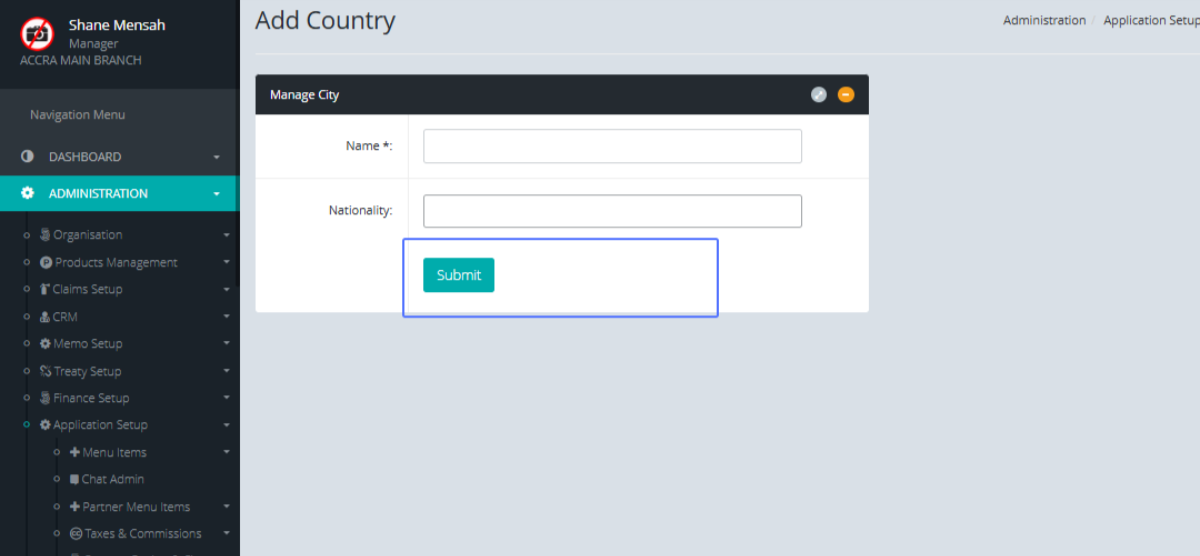
Click on the "Add Country" link to be navigated to the Add Country form.
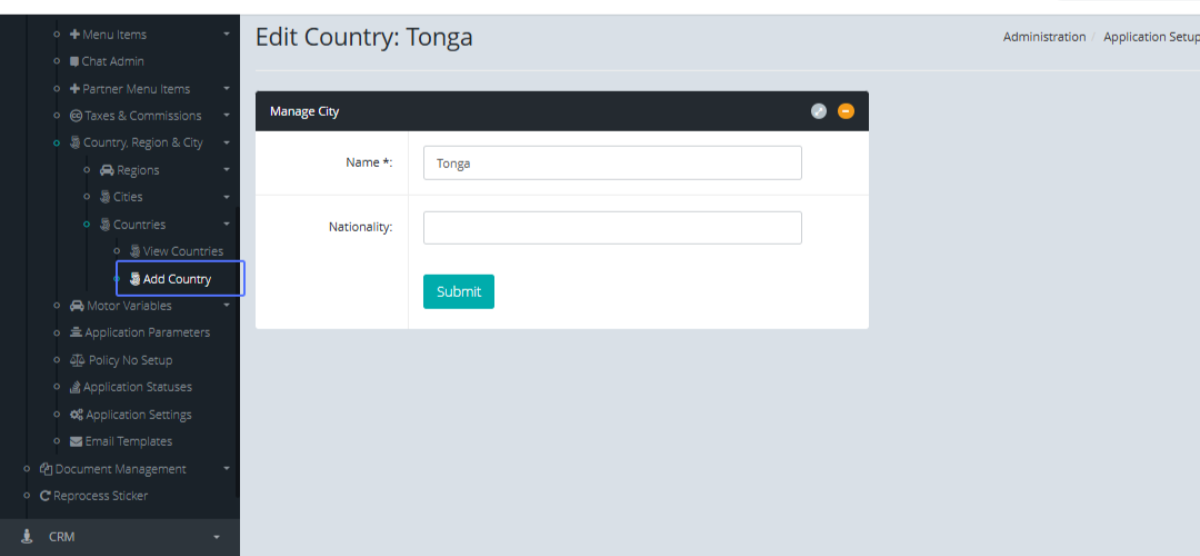
Enter the name within the provided input field.
Enter the Nationality within the provided input field.
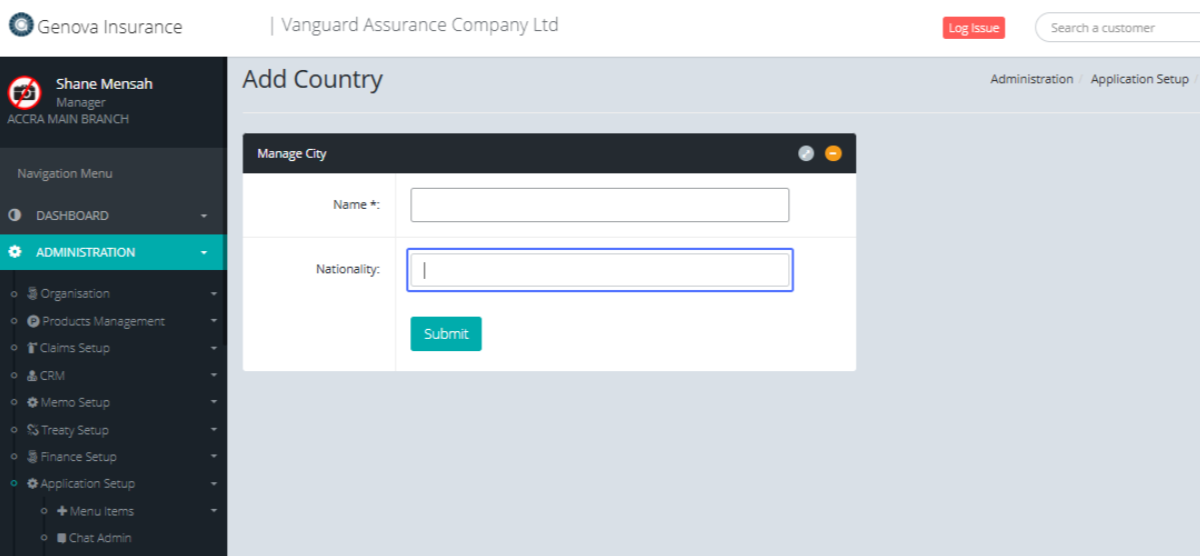
Click on "Submit" button to save the country.